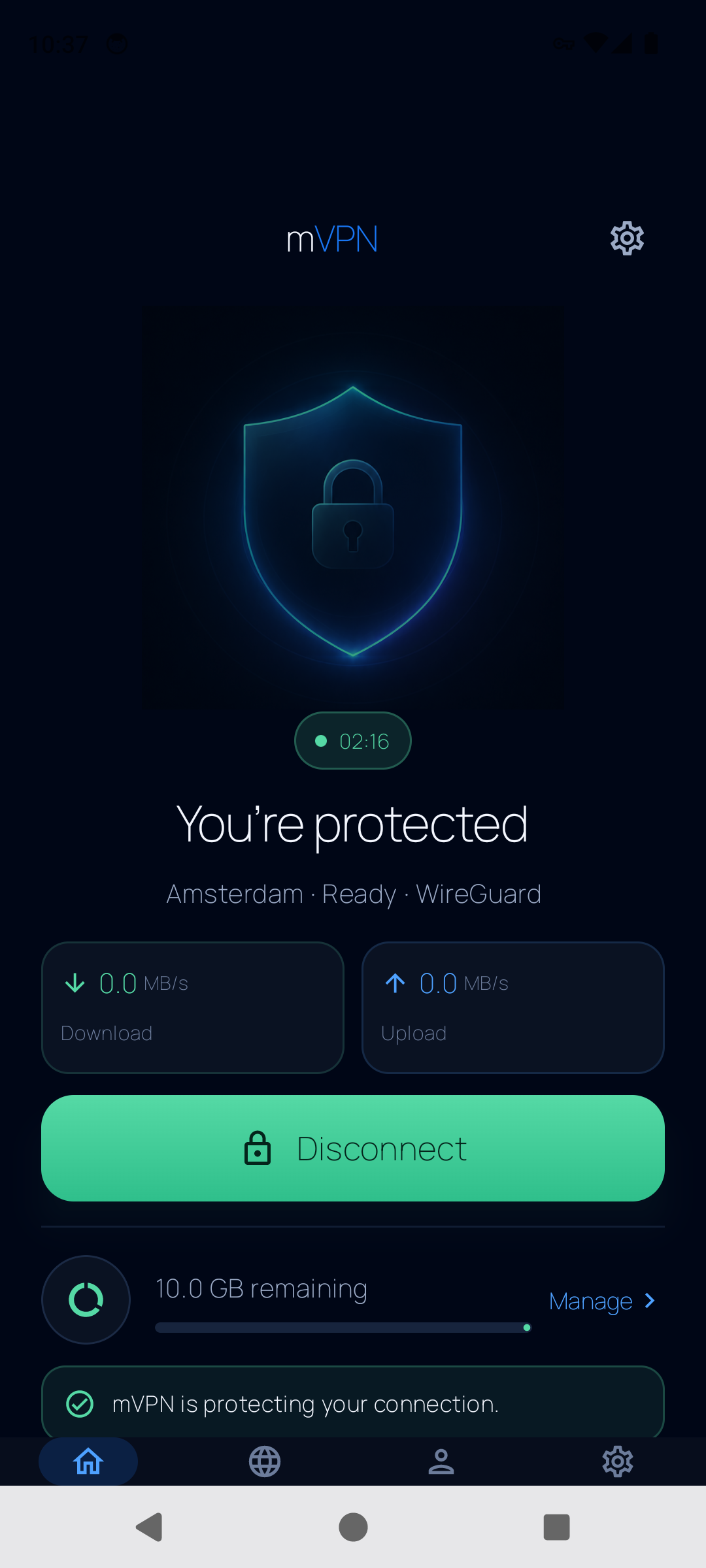
Install the official Android app
Open mVPN on Google Play and check that the developer is Mozghovyi Group S.R.L. The Android package is net.mvpn.android. Using this direct listing helps distinguish mVPN from similarly named apps.
The app supports Android 8.0 and newer. Google Play shows whether it is compatible with your device and available for your account. If the listing is unavailable, check the supported setup options before downloading an unfamiliar APK.
After installation, open mVPN and sign in or create an account. Keep account access private; you do not need to send your password or VPN configuration to support.
Make your first VPN connection
- Check that your phone can reach the internet before starting the VPN.
- Open mVPN and choose a server in the server list. Use the locations actually shown in the app.
- Return to the home screen and tap Connect.
- Review and approve Android's VPN connection request when it appears. This permission allows mVPN to create the tunnel.
- Wait for the connected status, then open a page or the service you need.
- When finished, open mVPN and tap Disconnect.
When changing servers, check the connection status again and tap Connect for the new location when prompted. A server selection alone is not proof that a tunnel is active.
Manage prepaid data without a monthly subscription
mVPN uses one-time prepaid data packs. In the Android app, open the data and billing section to see your balance and the packs offered through Google Play. Review the price and pack details on the purchase screen before paying; available offers and currency may differ by account.
Purchased prepaid GB do not expire. A base or promotional allowance can have different reset rules; check the current offer in your account when reading your balance.
Android purchases use Google Play. The website also offers a separate setup path using manual WireGuard profiles. Follow the billing instructions for the path you use rather than assuming that every store or device uses the same checkout.
Use mVPN when moving between networks
Before a trip, install the app and test it on a trusted network. On hotel or airport Wi-Fi, complete the network's sign-in page first, then start the VPN. Check the app's status again after switching between Wi-Fi and mobile data.
The WireGuard tunnel encrypts traffic between your device and the VPN server. Keep HTTPS enabled, update your phone and apps, and use strong passwords. A VPN does not prevent phishing or malware, and connection success can vary with the network.
For more practical preparation, read our travel VPN guide and public Wi-Fi guide.
If the Android VPN does not connect
- No internet without VPN: resolve the Wi-Fi or mobile connection first. A VPN cannot repair the underlying network.
- A hotel login page is missing: disconnect, complete the Wi-Fi sign-in page, then try again.
- Another VPN is active: check which VPN Android is using before reconnecting mVPN.
- The app reports insufficient data: check your account balance and purchase status in the app.
- One network or location fails: try another displayed server or switch between Wi-Fi and mobile data. Some networks restrict VPN traffic.
If the problem continues, contact support@mvpnapp.net with your Android version, app version, network type and the error message. Leave passwords, purchase tokens and private configuration files out of the message.
Android app questions
Do I need the separate WireGuard app?
For the native mVPN Android route, connect inside mVPN. The separate official WireGuard app is used for the manual profile route; the two setup flows are different.
Is there a published native mVPN iPhone app?
For iPhone and iPad, follow the supported iOS setup guide and check the latest app availability. The Android listing is for Android devices.
Does a connected screen guarantee every website will open?
No. A connected tunnel shows the VPN state; the destination service and your underlying network can still affect access. No particular website or network is guaranteed to work.